


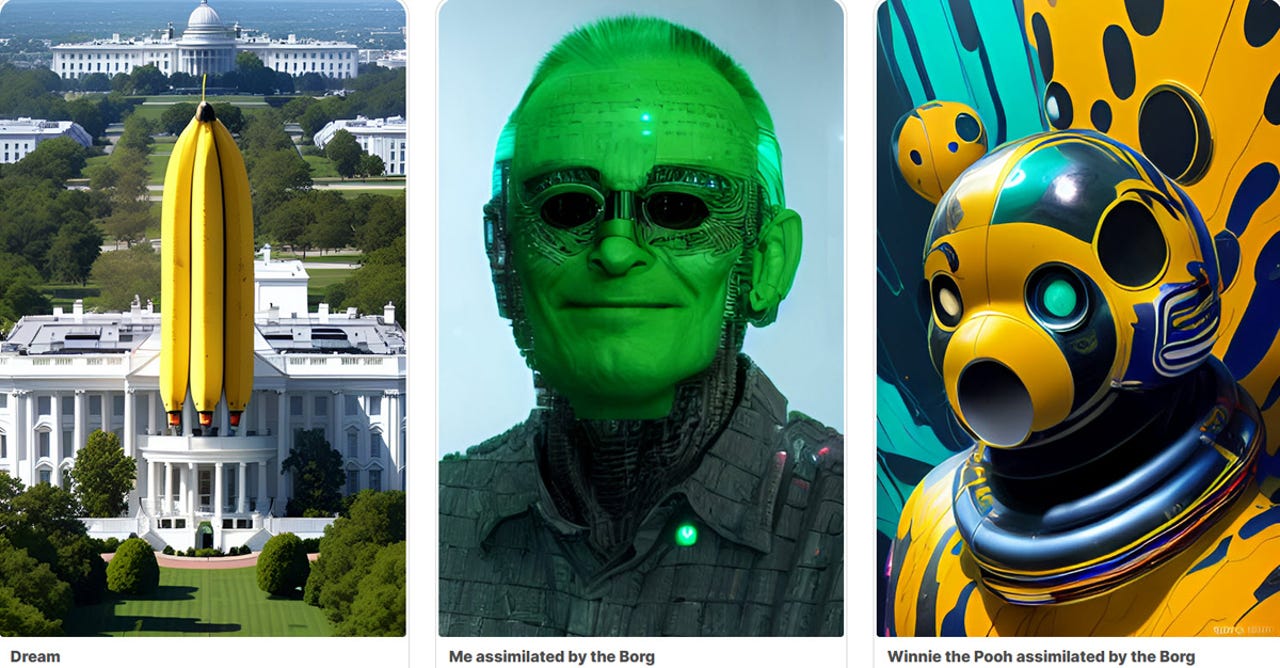
Among the different websites designed to create images from your text descriptions, one worth trying is Dream by WOMBO. The free basic version of this tool conjures up a single image. You can even choose a specific style of art, such as realistic, mystical, vibrant, dark fantasy, and a host of others. A paid tier concocts as many as four images, dispenses with ads, and offers quicker generation times. Dream by WOMBO is also available as an iOS app and an Android app, so you can use it on your mobile device. Here's how it works.
How to use: Midjourney | Bing Image Creator | DALL-E 2 | Stable Diffusion
Browse to the Dream by WOMBO website. Click the Start Creating button to dive in for free. Otherwise, click the funky yellow circle icon at the top to set up a paid account for $9.99 a month, $89.99 a year, or $169.99 for lifetime. A free three-day trial also lets you try before you buy. Further, you can sign up for an ad-supported account without having to shell out money for a subscription. Plus, join Dream's Discord channel to chat with other users, share artwork, and pick up ideas for effective prompts.
Also: How to use Craiyon AI (formerly known as DALL-E mini)
How to get started using Dream by WOMBO
How to use the mobile app
Beyond trying Dream by WOMBO at the website, you can use it on your mobile device. Download the app for iOS/iPadOS or Android. Sign into your account if you've created one. The home screen displays artwork from other people to serve as inspiration. To generate your own image, tap the plus icon. At the next screen, choose the size for your image. Type a description in the prompt field or tap the option for Start with an image to upload an existing image for modification. Choose an art style. Then tap Create.
In response, the app generates one or four images depending on your account type. From there, choose a specific image and you can regenerate it to see a new version, create variations of it, or edit it with text. When done, tap Finalize and you're able to share it with other people or apps.
