
Image by Author
Python and the suite of Python data analysis and machine learning libraries like pandas and scikit-learn help you develop data science applications with ease. However, dependency management in Python is a challenge. When working on a data science project, you’ll have to spend substantial time installing the various libraries and keeping track of the version of the libraries you’re using amongst others.
What if other developers want to run your code and contribute to the project? Well, other developers who want to replicate your data science application should first set up the project environment on their machine—before they can go ahead and run the code. Even small differences such as differing library versions can introduce breaking changes to the code. Docker to the rescue. Docker simplifies the development process and facilitates seamless collaboration.
This guide will introduce you to the basics of Docker and teach you how to containerize data science applications with Docker.
What Is Docker? 
Image by Author
Docker is a containerization tool that lets you build and share applications as portable artifacts called images.
Aside from source code, your application will have a set of dependencies, required configuration, system tools, and more. For example, in a data science project, you’ll install all the required libraries in your development environment (preferably inside a virtual environment). You’ll also ensure that you’re using an updated version of Python that the libraries support.
However, you may still run into problems when trying to run your application on another machine. These problems often arise from mismatched configuration and library versions—in the development environment—between the two machines.
With Docker, you can package your application—along with the dependencies and configuration. So you can define an isolated, reproducible, and consistent environment for your applications across the range of host machines.
Docker Basics: Images, Containers, and Registries
Let’s go over a few concepts/terminologies:
Docker Image
A Docker image is the portable artifact of your application.
Docker Container
When you run an image, you’re essentially getting the application running inside the container environment. So a running instance of an image is a container.
Docker Registry
Docker registry is a system for storing and distributing Docker images. After containerizing an application into a Docker image, you can make it available for the developer community by pushing them to an image registry. DockerHub is the largest public registry, and all images are pulled from DockerHub by default.
How Does Docker Simplify Development?
Because containers provide an isolated environment for your applications, other developers now only need to have Docker set up on their machine. And they can start containers they can pull the Docker image and start containers using a single command—without having to worry about complex installations—in remote
When developing an application, it is also common to build and test multiple versions of the same app. If you use Docker, you can have multiple versions of the same app running inside different containers—without any conflicts—in the same environment.
In addition to simplifying development, Docker also also simplifies deployment and helps the development and operations teams to collaborate effectively. On the server side, the operations team doesn't have to spend time resolving complex version and dependency conflicts. They only need to have a docker runtime set up
Essential Docker Commands
Let's quickly go over some basic Docker commands most of which we’ll use in this tutorial. For a more detailed overview read: 12 Docker Commands Every Data Scientist Should Know.
| Command | Function |
docker ps |
Lists all running containers |
docker pull image-name |
Pulls image-name from DockerHub by default |
docker images |
Lists all the available images |
docker run image-name |
Starts a container from an image |
docker start container-id |
Restarts a stopped container |
docker stop container-id |
Stops a running container |
docker build path |
Builds an image at the path using instructions in the Dockerfile |
Note: Run all the commands by prefixing sudo if you haven’t created the docker group with the user.
How to Containerize a Data Science App Using Docker
We’ve learned the basics of Docker, and it’s time to apply what we’ve learned. In this section, we’ll containerize a simple data science application using Docker.
House Price Prediction Model
Let’s take the following linear regression model that predicts the target value: the median house price based on the input features. The model is built using the California housing dataset:
# house_price_prediction.py from sklearn.datasets import fetch_california_housing from sklearn.model_selection import train_test_split from sklearn.preprocessing import StandardScaler from sklearn.linear_model import LinearRegression from sklearn.metrics import mean_squared_error, r2_score # Load the California Housing dataset data = fetch_california_housing(as_frame=True) X = data.data y = data.target # Split the dataset into training and test sets X_train, X_test, y_train, y_test = train_test_split(X, y, test_size=0.2, random_state=42) # Standardize features scaler = StandardScaler() X_train = scaler.fit_transform(X_train) X_test = scaler.transform(X_test) # Train the model model = LinearRegression() model.fit(X_train, y_train) # Make predictions on the test set y_pred = model.predict(X_test) # Evaluate the model mse = mean_squared_error(y_test, y_pred) r2 = r2_score(y_test, y_pred) print(f"Mean Squared Error: {mse:.2f}") print(f"R-squared Score: {r2:.2f}")We know that scikit-learn is a required dependency. If you go through the code, we set as_frame equal to True when loading the dataset . So we also need pandas. And the requirements.txt file looks like so:
pandas==2.0 scikit-learn==1.2.2 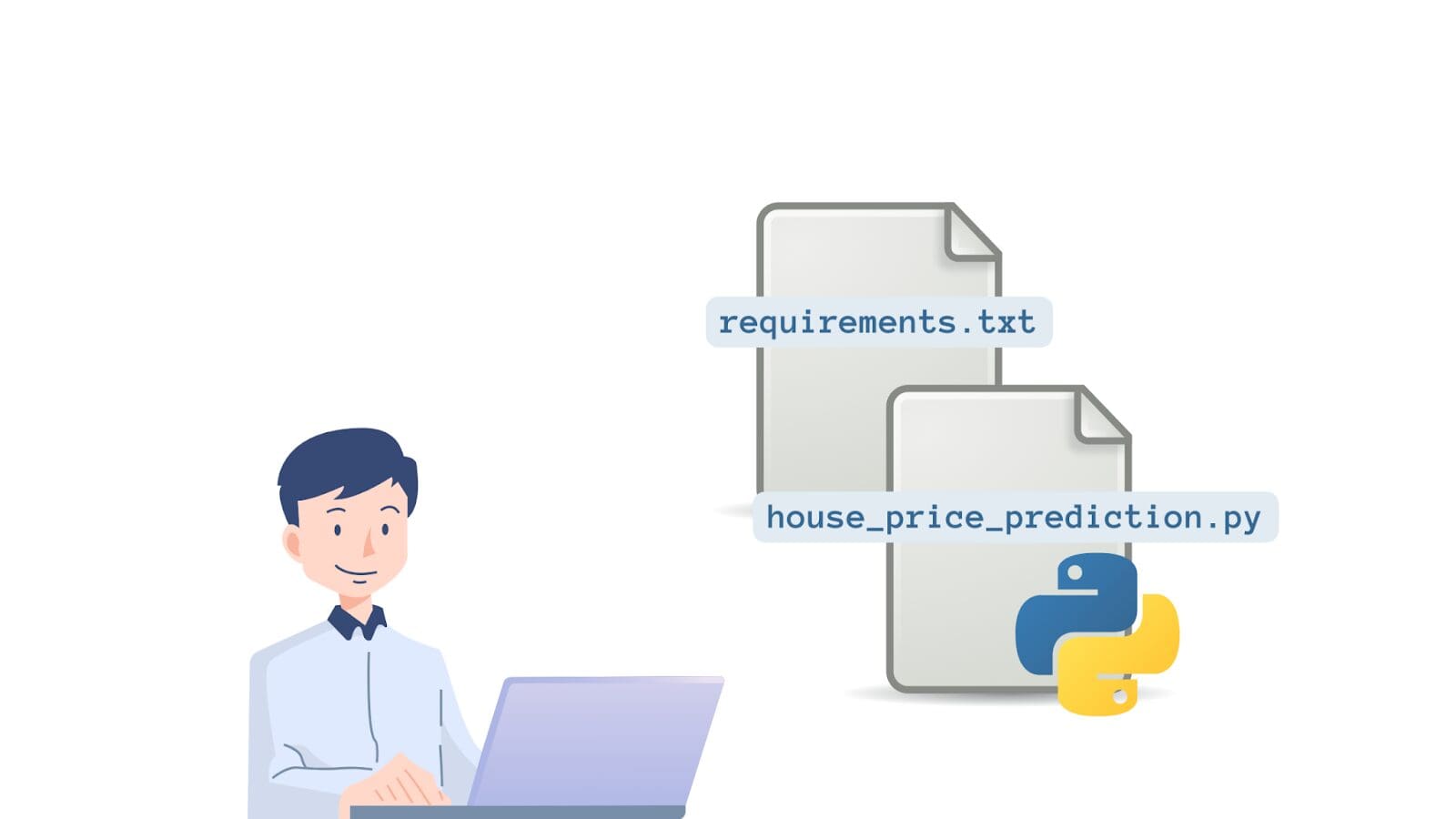
Image by Author
Create the Dockerfile
So far, we have the source code file house_price_prediction.py and the requirements.txt file. We should now define how to build an image from our application. The Dockerfile is used to create this definition of building an image from the application source code files.
So what is a Dockerfile? It is a text document that contains step-by-step instructions to build the Docker image.
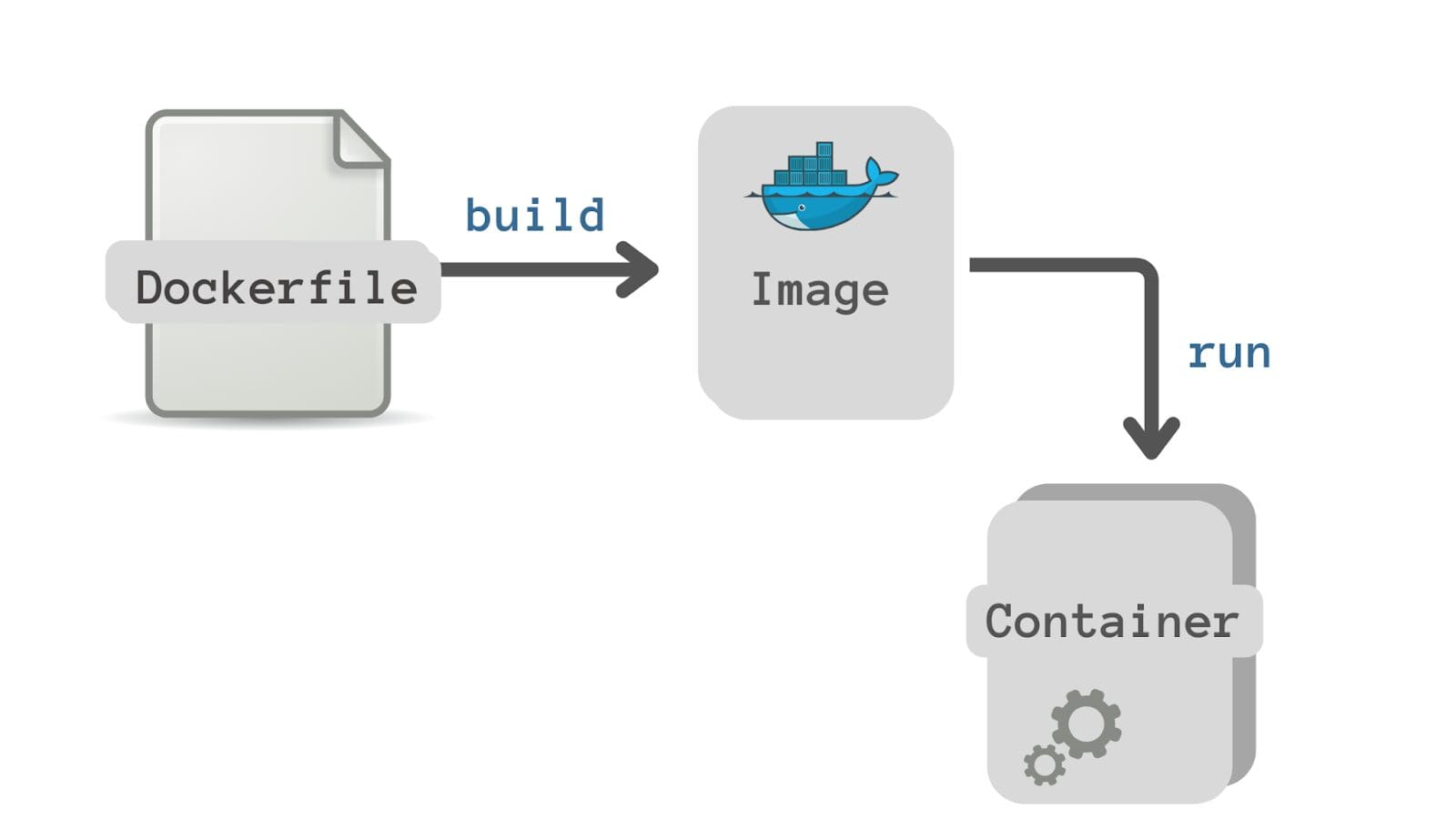
Image by Author
Here’s the Dockerfile for our example:
# Use the official Python image as the base image FROM python:3.9-slim # Set the working directory in the container WORKDIR /app # Copy the requirements.txt file to the container COPY requirements.txt . # Install the dependencies RUN pip install --no-cache-dir -r requirements.txt # Copy the script file to the container COPY house_price_prediction.py . # Set the command to run your Python script CMD ["python", "house_price_prediction.py"]Let’s break down the contents of the Dockerfile:
- All Dockerfiles start with a
FROMinstruction specifying the base image. Base image is that image on which your image is based. Here we use an available image for Python 3.9. TheFROMinstruction tells Docker to build the current image from the specified base image. - The
SETcommand is used to set the working directory for all the following commands (app in this example). - We then copy the
requirements.txtfile to the container’s file system. - The
RUNinstruction executes the specified command—in a shell—inside the container. Here we install all the required dependencies usingpip. - We then copy the source code file—the Python script
house_price_prediction.py—to the container’s file system. - Finally
CMDrefers to the instruction to be executed—when the container starts. Here we need to run thehouse_price_prediction.pyscript. The Dockerfile should contain only oneCMDinstruction.
Build the Image
Now that we’ve defined the Dockerfile, we can build the docker image by running the docker build:
docker build -t ml-app .The option -t allows us to specify a name and tag for the image in the name:tag format. The default tag is latest.
The build process takes a couple of minutes:
Sending build context to Docker daemon 4.608kB Step 1/6 : FROM python:3.9-slim 3.9-slim: Pulling from library/python 5b5fe70539cd: Pull complete f4b0e4004dc0: Pull complete ec1650096fae: Pull complete 2ee3c5a347ae: Pull complete d854e82593a7: Pull complete Digest: sha256:0074c6241f2ff175532c72fb0fb37264e8a1ac68f9790f9ee6da7e9fdfb67a0e Status: Downloaded newer image for python:3.9-slim ---> 326a3a036ed2 Step 2/6 : WORKDIR /app ... ... ... Step 6/6 : CMD ["python", "house_price_prediction.py"] ---> Running in 7fcef6a2ab2c Removing intermediate container 7fcef6a2ab2c ---> 2607aa43c61a Successfully built 2607aa43c61a Successfully tagged ml-app:latestAfter the Docker image has been built, run the docker images command. You should see theml-app image listed, too.
docker images 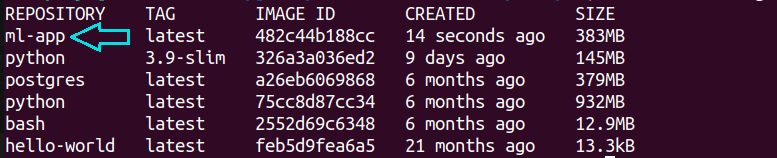
You can run the Docker image ml-app using the docker run command:
docker run ml-app 
Congratulations! You’ve just dockerized your first data science application. By creating a DockerHub account, you can push the image to it (or to a private repository within the organization).
Conclusion
Hope you found this introductory Docker tutorial helpful. You can find the code used in this tutorial in this GitHub repository. As a next step, set up Docker on your machine and try this example. Or dockerize an application of your choice.
The easiest way to install Docker on your machine is using Docker Desktop: you get both the Docker CLI client as well as a GUI to manage your containers easily. So set up Docker and get coding right away!
Bala Priya C is a developer and technical writer from India. She likes working at the intersection of math, programming, data science, and content creation. Her areas of interest and expertise include DevOps, data science, and natural language processing. She enjoys reading, writing, coding, and coffee! Currently, she's working on learning and sharing her knowledge with the developer community by authoring tutorials, how-to guides, opinion pieces, and more.
- 12 Docker Commands Every Data Scientist Should Know
- What will the demand for Data Scientists be in 10 years? Will Data…
- Docker for Data Science Cheat Sheet
- dbt for Data Transformation — Hands-on Tutorial
- Data Ingestion with Pandas: A Beginner Tutorial
- You Don’t Have to Use Docker Anymore