
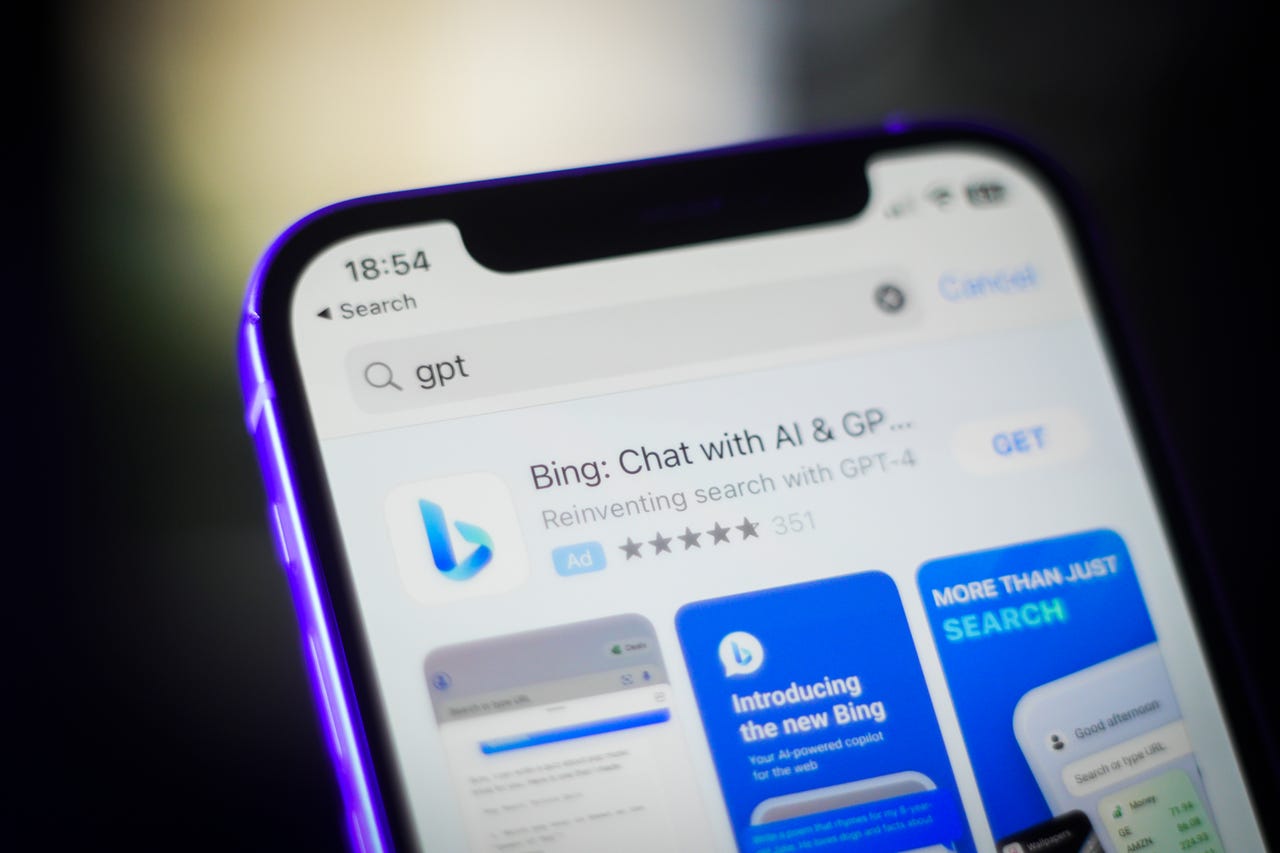
Microsoft offers a Bing AI chat app through which you can ask questions, submit requests, and carry on conversations via your mobile device. But rather than go through the app, you can quickly and easily use a widget.
Also: What is Bing Chat? Everything you need to know
Available for iPhones, iPads, and Android phones, the Bing AI widget lets you ask questions, conduct a regular search, or run a private search. You can even choose between different styles and layouts for the widget. Here's how to set it up.
How to set up the Bing AI chat widget on iPhone or iPad
How to set up the Bing AI chat widget on Android
To set up the widget on your Android phone, download and install the Bing AI app for Android if you haven't already. Move to the screen on which you wish to put the widget and press down on any empty area. From the popup menu, select Widgets. Tap the entry for Bing on the Widgets screen.
Also: My 5 favorite AI tools for work
Here, you can choose among 13 different styles, from simple to complex. To grab the AI option, though, make sure you choose one of the styles that incorporates the AI icon, such as Search & Chat or Wallpaper. Press and hold down your preferred style and then drag and drop it onto the screen.
To remove the widget on your Android phone, press down on it until you see a Remove icon above it. Drag and drop the widget onto that icon, and it will vanish.